Pages

Showing posts with label LibreOffice Calc. Show all posts

2024/02/11

LibreOffice Calc (FREE) - Merge Text in Rows To a Single Line on Windows 11

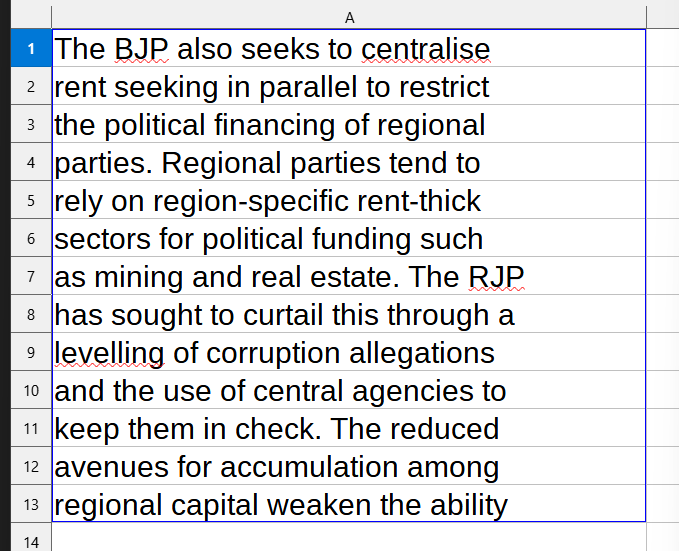
If you have this in LibreOffice Calc (see the picture below),  you can convert it to a single line of text.


The test steps - LibreOffice 7.5.2.2
OS: Windows 11 Home
Download from the developer's website: https://www.libreoffice.org/download/download-libreoffice


1. Download LibreOffice from the link above and install it.

2. Select the cell where a single line will be placed.


Click 'fx'.

A new window shows, search 'textjoin'


Select 'TEXTJOIN' in Function then click 'Next>'

At Delimiter, type 'char(32)'. char(32) = space.

Click the box of Text 1.

Select the target rows (click the first rows, then hold shift key and click the last row).

In the box of Text 1, you will see something like this (picture below).

Click OK.

The single line of text is in the cell.

I copied that cell (in my case, C1) and pasted to Notepad.

In the picture below, A1 ends with 'centralise', A2 starts with 'rent'. 

In the single line of text, I had ...centralise[space]rent...

Some people think about MS Word or similar apps for managing text but using Calc to do this task is very fast and easy.

The test steps - LibreOffice 7.5.2.2
OS: Windows 11 Home
Download from the developer's website: https://www.libreoffice.org/download/download-libreoffice

2023/08/01

LibreOffice Calc (FREE) - ROUNDUP, Function You Should Know for Calculating on Windows 11

The test steps - LibreOffice 7.5.2.2
OS: Windows 11 Home
Download from the developer's website: https://www.libreoffice.org/download/download-libreoffice


1. It has parameter 'Count' just like 'ROUND' function.

In the picture above, 'Count' is omitted that means all decimals will be removed from the result in 'ROUND'. 'ROUNDUP' does the same way, but 55 is changed to 56 because of 'UP' in 'ROUNDUP'.


In 'ROUNDUP', .01 changes 55 to 56.

I can tell by the result that anything that is more than zero afftects the result.

I set parameter 'Count' to 1, 55.01 is changed to 55.1.

I can tell by the result that the result has 1 decimal because parameter 'Count' is set to 1.

I parameter 'Count' is set to 2, 55.01 is intact.


=ROUNDUP(A1,2)


=ROUNDUP(A1, )


2. If parameter 'Count' is set to the negative value, anything that is more than zero will affect the result. The result is built by adding numbers until it must be devided by 10 and the answer has no decimals. That is similar to function 'ROUND', anything that is 5 or greater will affect the result in the same way.


When parameter 'Count' is set to the negative value, there is nothing to do with decimals of the result.


Functions should be used to serve the clear purpose. The original result should be seen easily, it can help when something goes wrong.

The test steps - LibreOffice 7.5.2.2
OS: Windows 11 Home
Download from the developer's website: https://www.libreoffice.org/download/download-libreoffice


2023/07/10

LibreOffice Calc (FREE) - ROUND, Function You Should Know for Calculating on Windows 11

The test steps - LibreOffice 7.5.2.2
OS: Windows 11 Home
Download from the developer's website: https://www.libreoffice.org/download/download-libreoffice


1. Technical terms makes confusion, so I will show you the result of it.

Start with 'ROUND', insert function 'ROUND' with omitted 'Count'.


Cell C1 is the result, A1 is the input.


Number without decimal is intact.

Setting 'Count' to 2 made no change.


Count: 2, input has one decimal, input is intact.


Changed Count to 1, input was intact.


Input with 4 decimals, the result was modified to 1 decimal


Now you should know that 'Count' has things to do with decimals.

If 'Count' is omitted, decimals will be removed.


 Input with 3 decimals will be affected, if 'Count' is 2. The result will have 2 decimals.

In this case, if decimal 3 is 5 or greater, 'ROUND' will add 1 to decimal 2.


If decimal 3 is less than 5, decimal 2 is intact.


If 'Count' is negative, decimals will be removed, 55 was changed to 60 (see the picture below).


If input is 54, result is 50. 60 and 50 can be devided by 10 and the answer has no decimals.

5 is a half way to 10, so anything that is 5 or greater, 'ROUND' with negative 'Count' value will add some to that number to create the result that can be devided by 10 and the answer has no decimals. Anything that is less than 5, 'Round' will deducts that number to create the result that can be devided by 10 and the answer has no decimals.


What 'ROUND' with negative 'Count' value adds/deducts is not greater than 10.


The test steps - LibreOffice 7.5.2.2
OS: Windows 11 Home
Download from the developer's website: https://www.libreoffice.org/download/download-libreoffice


2023/06/18

LibreOffice Calc (FREE) - How to Use VLOOKUP on Windows 11

You have a table that has a long list of data, and you want to get the specific data, try VOOKUP, and see if it fits your need.

The test steps - LibreOffice 7.5.2.2
OS: Windows 11 Home
Download from the developer's website: https://www.libreoffice.org/download/download-libreoffice


1. Column A to D is the table.


 First thing is sorting, select columns.


 Activate AutoFilter.


Your table must have column heads, it will ask you for using the first row as column heads, click 'OK'.


The first column is the key for VLOOKUP because it will look up a cell in the first column. You can set which is the first column in the formula, the first column depends on your settings, it doesn't have to be the first column of the table.

In my case, I set 'ID' is the first column so I sort column 'ID'in ascending order.

Click the arrow and select sort ascending.


 I used a cell E4 for VLOOKUP. Insert VLOOKUP in the target cell.

I think about this line: ask A in the table, what is B?

In the picture below, search criterion is A in the line above.


A is the value in the first column you set in VLOOKUP.

I set search criterion to cell E1.


 In the picture below, Array is the table in the link I think about when using VLOOKUP, you can set the table starting with column B, the first column in the formular is column B.


In my case, I select column A to D.

In the picture below, Index is B in my line above.

I set it to 3, 3 is column 3 that is sports.

To complete the line in human speaking is 'I ask A, what is sports?'.

To make it look pretty: I ask the person who has ID 002, what is your favorite sport?

In the picture below, sorted range lookup is the last value you have to set.


On libreofficehelp.com, it says this value is search type.

search_type: 0=Exact match; 1=Approximate match; default is 1 (approx match).

I set it to 0 for exact match.

In the picture below, I set cell E1 to 007.

My line is: I ask the person who has ID 007, what is your favorite sport?

The answer is rope climbing.

If I change 'B' in my line to 4.


My line is: I ask the person who has ID 007, what is your favorite color?

The answer is black.

If I change the table area to column B to D, and change 'B' (in my line) to 3. And set cell E1 to D.


Then I convert to human speaking: I ask the person whose name is D, what is your favorite color?

The answer is red.

2. 'VLOOKUP only returns the first match', that line on libreofficehelp.com. So the first column shouldn't have duplicates.

You can read 'managing the duplicates' in my previous post.

That's all I have for VLOOKUP.

The test steps - LibreOffice 7.5.2.2
OS: Windows 11 Home
Download from the developer's website: https://www.libreoffice.org/download/download-libreoffice